
Onboarding
Set up your NextRoute account from scratch — business info, zones, plans, and your first master route.
Onboarding
When you first sign up, the onboarding wizard guides you through the essential setup steps.
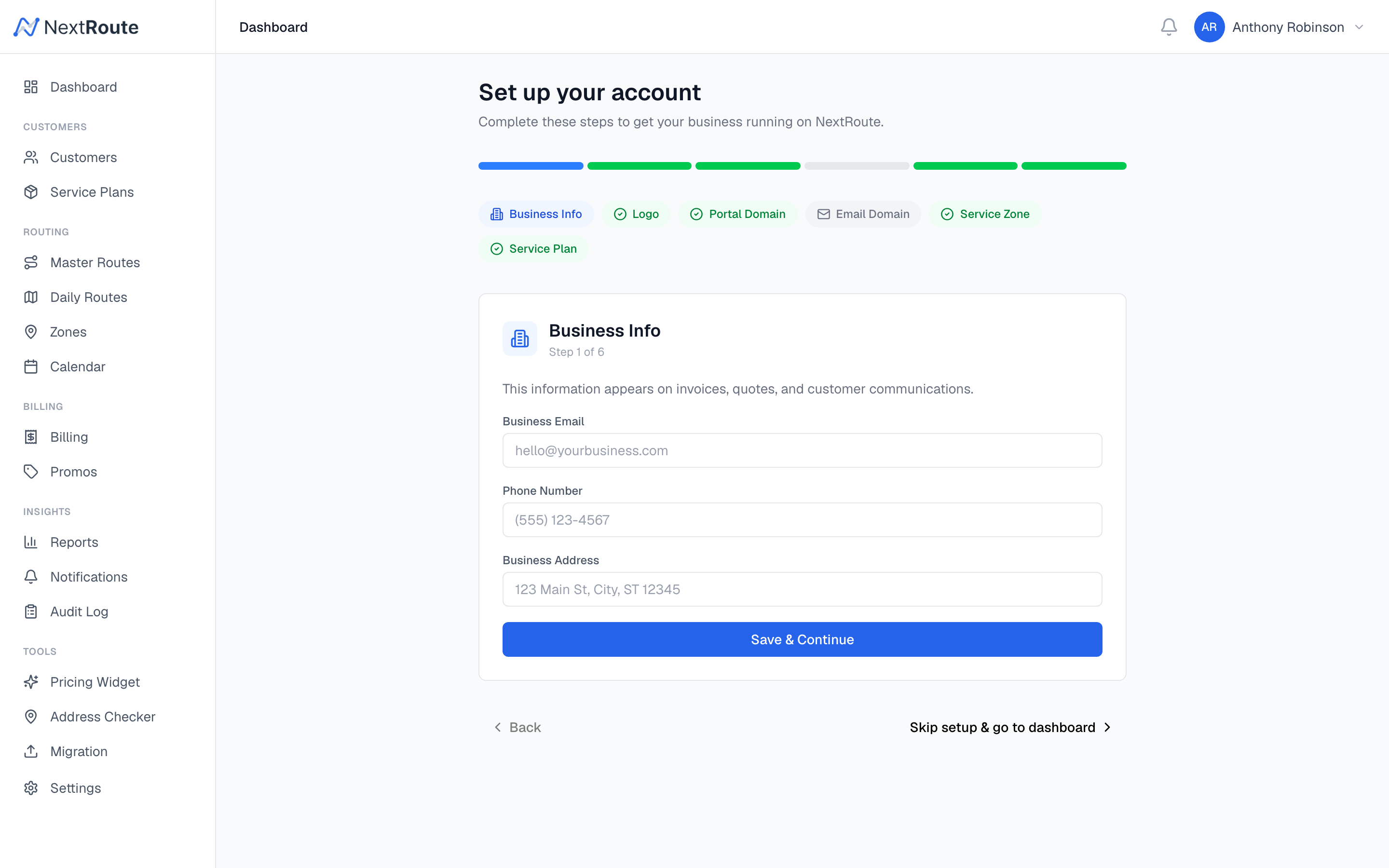
Step 1: Business Information
Enter your business name, timezone, and contact details. These appear on invoices and customer-facing communications.
Step 2: Create Service Zones
Define the geographic areas you serve. Each zone represents a neighborhood or region where you run routes.
To create a zone:
- Go to Zones in the sidebar
- Click Add Zone
- Name the zone (e.g., "North Charleston")
- Set the boundary type (polygon, ZIP codes, or radius)
- Draw the boundary on the map
- Assign a default day of the week
- Save
Step 3: Create Service Plans
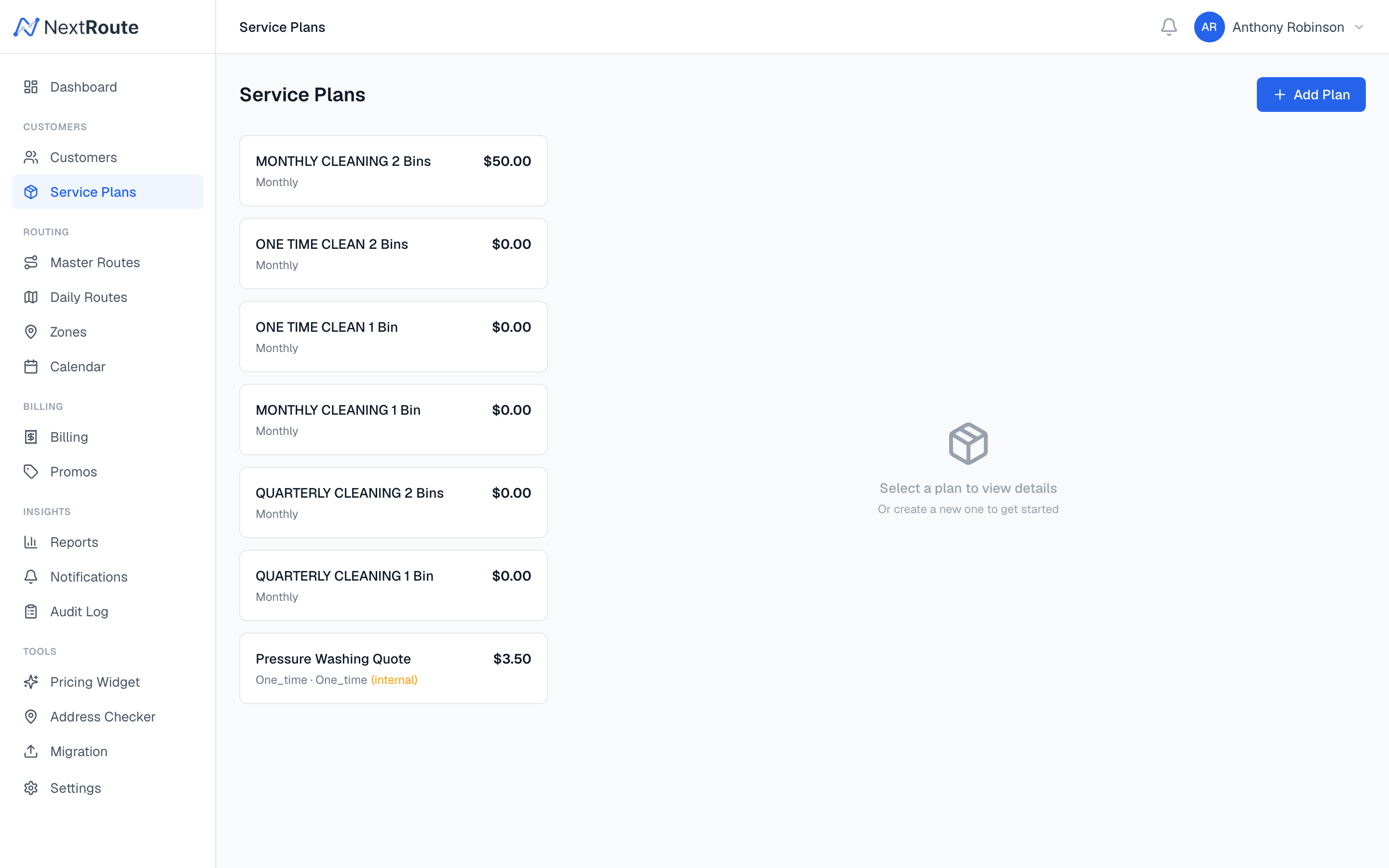
Define what you offer and how much it costs.
- Go to Service Plans in the sidebar
- Click Add Plan
- Set the name, frequency, and price
- Optionally set per-bin pricing for additional bins
- Save
Step 4: Import or Add Customers
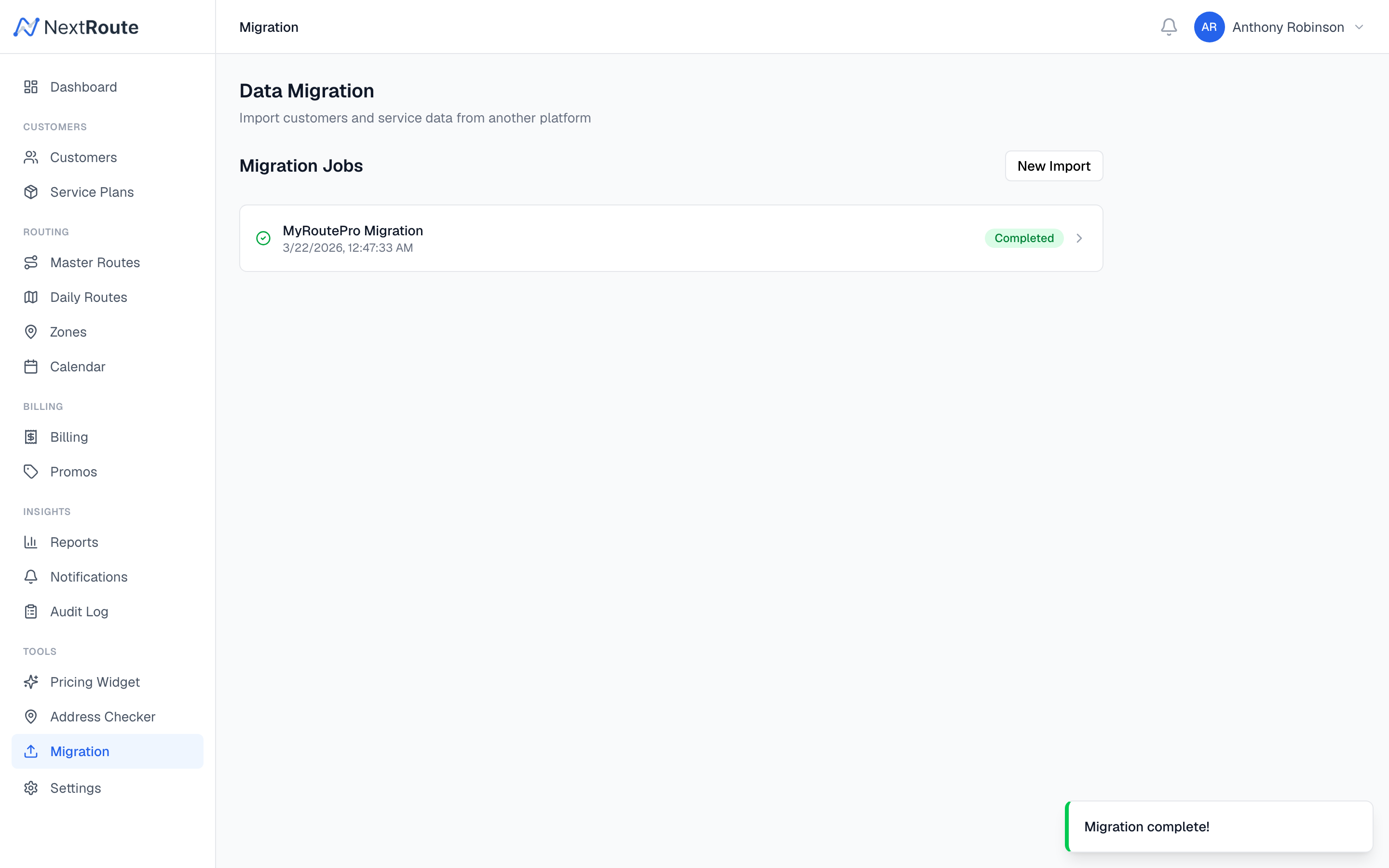
You can add customers manually or import from a CSV file.
Manual: Go to Customers → Add Customer. Fill in their name, contact info, address, service plan, and zone.
CSV Import: Go to Migration → upload a CSV with columns for name, email, phone, address, plan, zone, and frequency.
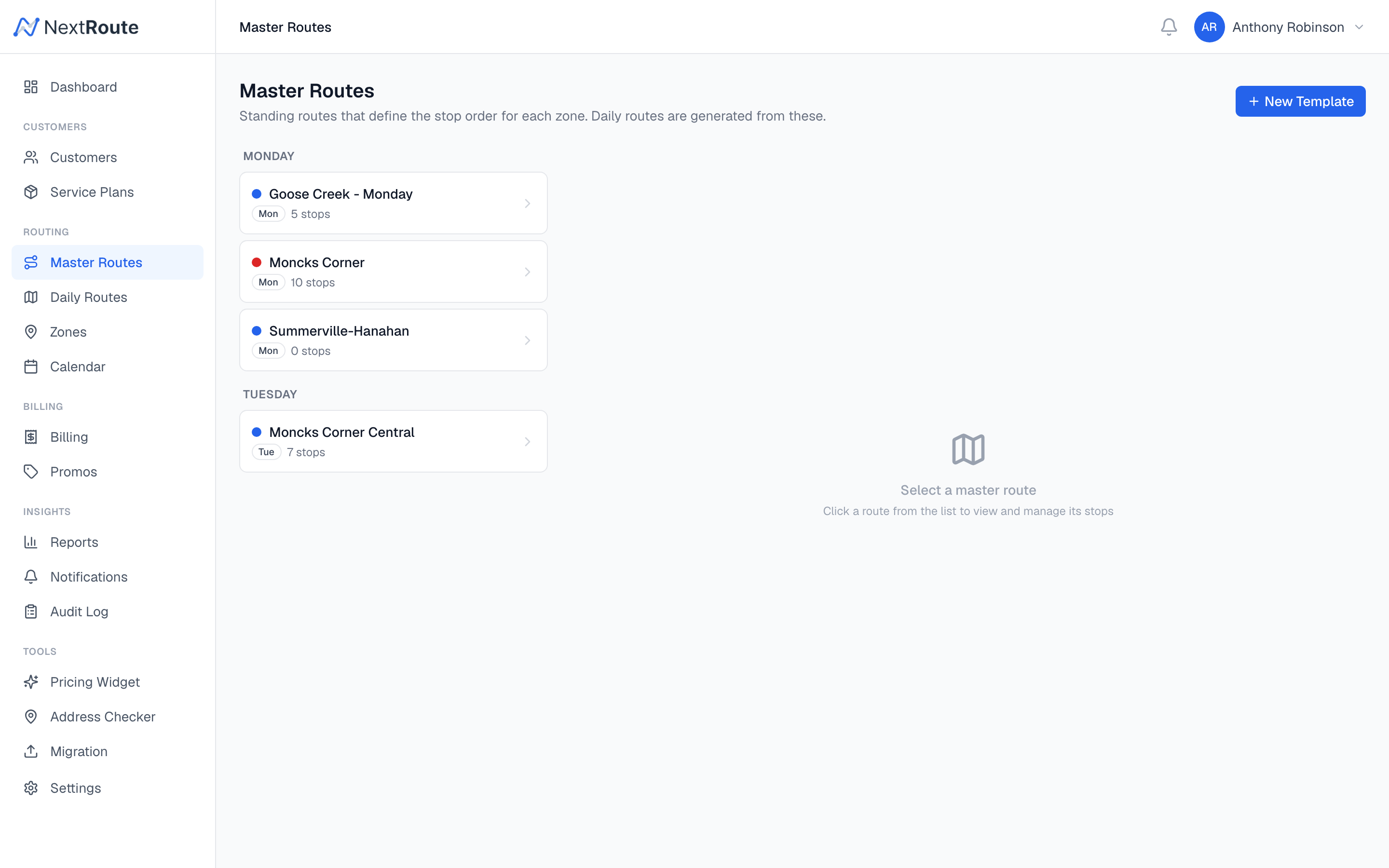
Step 5: Review Master Routes
When you assign a customer to a zone and plan, they're automatically added to the zone's master route template. Review the templates:
- Go to Master Routes
- Click a template to see its stops
- Approve any pending stops (if auto-add is disabled)
- Optionally optimize the stop order
Step 6: Generate Routes
Enable auto-generation in Settings → Routes or manually generate routes:
- Go to Daily Routes
- Select a date
- Routes appear automatically if auto-generation is enabled
You're ready to dispatch your first route.