
Address Widget
Embeddable service area checker that lets website visitors verify if their address is within your service area.
Address Widget
The address widget is an embeddable component that lets visitors to your marketing website check whether their address is within your service area. It geocodes the entered address, checks it against your service zones, and displays the result with an optional interactive map.
How It Works
- A visitor enters their address into the widget on your website
- The address is geocoded to get coordinates
- Coordinates are checked against your configured service zones (polygon, radius, or ZIP code)
- The widget displays a success or failure message
- If the address is serviceable, a call-to-action button links to your enrollment form
Configuring the Widget
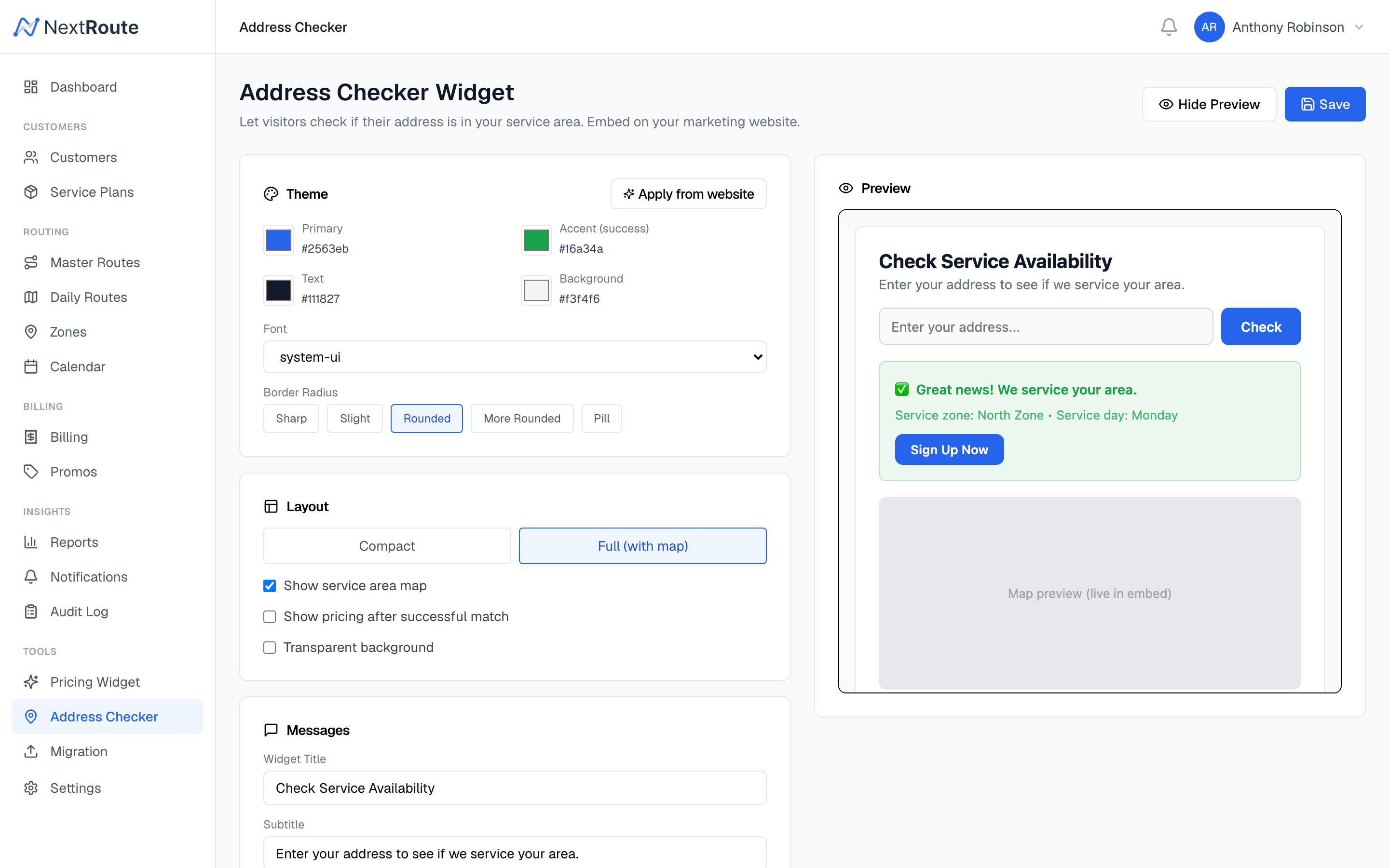
Navigate to Tools > Address Widget in the dashboard to configure the widget's appearance and messaging.
Appearance Settings
| Setting | Default | Description |
|---|---|---|
| Primary Color | #2563eb | Button and focus ring color |
| Secondary Color | #f3f4f6 | Background accents |
| Text Color | #111827 | Main text color |
| Accent Color | #16a34a | Success state color |
| Font Family | system-ui, sans-serif | Widget font stack |
| Border Radius | 8px | Corner rounding for inputs and cards |
| Layout | full | full (720px) or compact (480px) |
| Background Transparent | false | Set to true to blend with your site background |
Content Settings
| Setting | Default | Description |
|---|---|---|
| Title | "Check Service Availability" | Widget heading |
| Subtitle | "Enter your address to see if we service your area." | Subheading text |
| In-Area Message | "Great news! We service your area." | Shown when address is serviceable |
| Out-of-Area Message | "Sorry, we don't currently service your area." | Shown when address is outside zones |
| CTA Text | "Sign Up Now" | Call-to-action button label |
| CTA URL | Enrollment form URL | Where the CTA button links to |
Map Display
When Show Map is enabled, the widget includes an interactive Mapbox map that:
- Displays your service zone boundaries (polygons and radius circles)
- Automatically fits the view to show all zones
- Drops a color-coded pin on the searched address (green for in-area, red for out-of-area)
- Flies to the address location on search
Embedding on Your Website
Copy the embed code and add it to any page on your website:
<script src="https://api.nextroute.app/api/address-widget/embed/your-business-slug"></script>The widget renders inside a Shadow DOM, so it will not conflict with your site's existing CSS. Place the script tag wherever you want the widget to appear.
Widget API Endpoints
Check an Address (Public)
This endpoint is called by the widget. No authentication is required.
curl -X POST https://api.nextroute.app/api/address-widget/check/your-business-slug \
  -H "Content-Type: application/json" \
  -d '{"address": "123 Main St, Austin, TX 78701"}'
Success response:
{
  "in_service_area": true,
  "lat": 30.2672,
  "lng": -97.7431,
  "formatted_address": "123 Main St, Austin, TX 78701",
  "zone_name": "Central Austin",
  "service_day": "monday"
}
Out-of-area response:
{
  "in_service_area": false,
  "lat": 35.2271,
  "lng": -80.8431,
  "formatted_address": "456 Elm St, Charlotte, NC 28202"
}
Get Zone Boundaries (Public)
Returns zone shapes for the map overlay:
curl https://api.nextroute.app/api/address-widget/zones/your-business-slugGet Widget Config (Authenticated)
curl https://api.nextroute.app/api/address-widget/config \
  -H "Authorization: Bearer YOUR_TOKEN"
Save Widget Config (Authenticated)
curl -X PUT https://api.nextroute.app/api/address-widget/config \
  -H "Authorization: Bearer YOUR_TOKEN" \
  -H "Content-Type: application/json" \
  -d '{
    "primary_color": "#2563eb",
    "title": "Do We Service Your Area?",
    "show_map": true,
    "cta_text": "Get Started",
    "cta_url": "https://nextroute.app/enroll/your-business-slug"
  }'
Zone Boundary Support
The address check supports all three zone boundary types:
- Polygon — point-in-polygon geographic check using GeoJSON boundaries
- Radius — distance calculation from the zone center point
- ZIP code — matches the geocoded ZIP code against zone ZIP code lists
If you have no service zones configured, all addresses are accepted.
Styling Tips
- If your website has a dark background, set
background_transparent: trueand adjusttext_colorto a light value - Use the
compactlayout for sidebars or narrow columns - Match
primary_colorto your brand's main accent color - The widget automatically inherits the detected style from the Pricing Widget analysis if available
Related
- Service Zones — configure the zones that the widget checks against
- Pricing Widget — show pricing alongside the address checker
- Enrollment Forms — where the CTA button links to