
Customer Portal
Self-service customer portal for viewing schedules, invoices, service history, and managing account settings.
Customer Portal
The NextRoute customer portal gives your customers a branded self-service interface to view their service schedule, pay invoices, and manage their account.
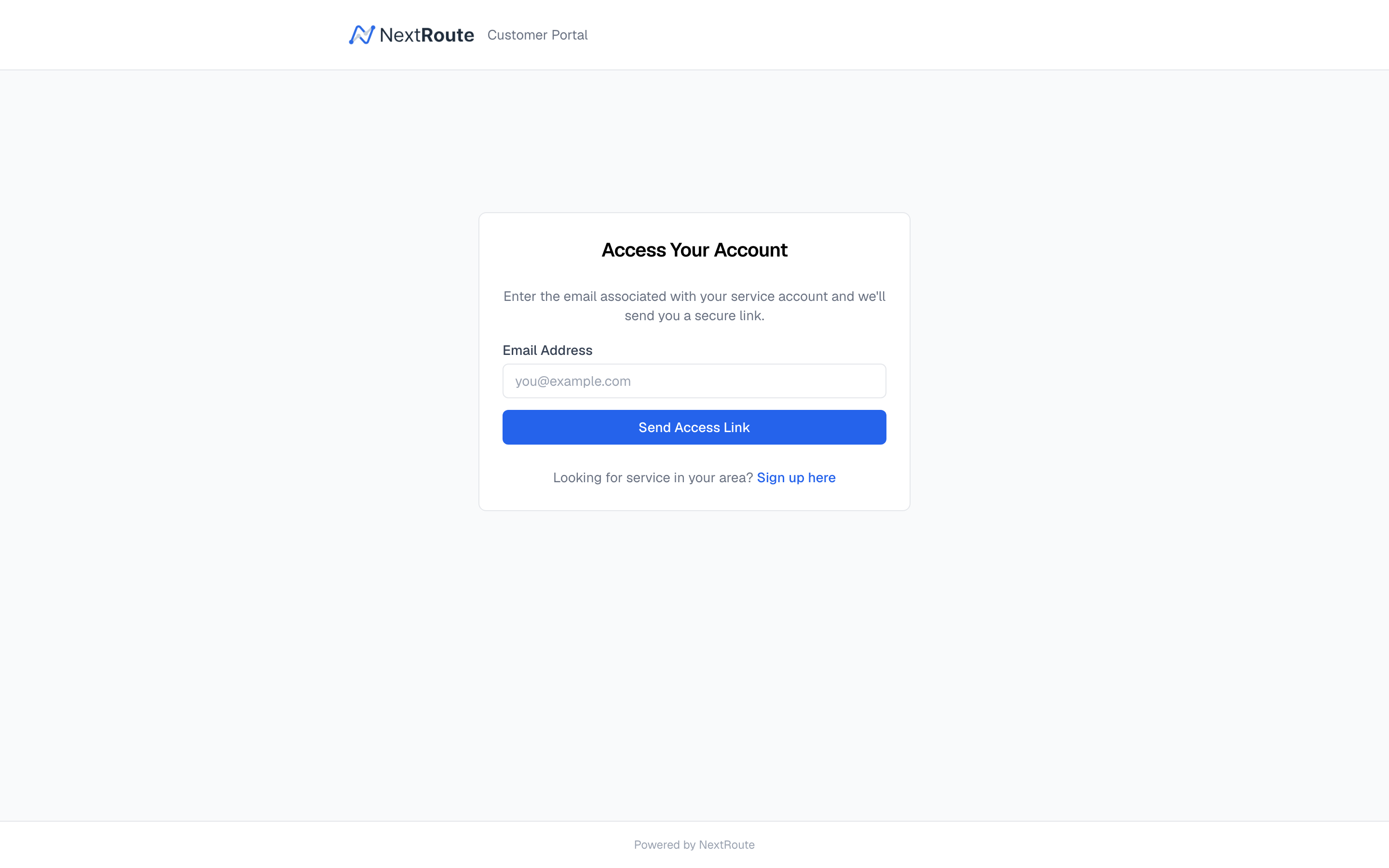
Accessing the Portal
Customers access the portal at:
- Default URL:
nextroute.app/portal - Custom domain:
portal.yourbusiness.com(if configured in General Settings)
Customers log in using their email address and a password or magic link.
Portal Features
Service Schedule
Customers can view their upcoming and past service dates:
- Upcoming services: Dates pulled from generated routes where the customer has a stop
- Service history: Past completed and skipped services with dates and status
- Next service date: Prominently displayed for quick reference
Invoices & Payments
- Invoice list: All invoices with status badges (draft, sent, paid, overdue)
- Invoice detail: View line items, subtotals, tax, and total
- Pay online: Click to pay via Stripe (card or ACH) if Stripe Connect is configured
- Payment history: Record of all past payments
Account Information
Customers can view and update:
- Name and contact information
- Service address(es)
- Service plan details
- Notification preferences
Vacation Holds
Customers can request vacation holds directly from the portal:
- Select start and end dates
- Add optional notes
- Hold is created and cascades to draft routes automatically
Service Requests
Depending on your configuration, customers may be able to:
- Request a service skip for a specific date
- Request a one-time extra service
- Update their service plan
- Cancel their service
Portal Branding
The portal automatically uses your business branding:
- Logo: From your General Settings
- Business name: Displayed in the header
- Color scheme: Matches your configured brand colors
Customer Notifications from Portal
When customers take actions in the portal (e.g., request a vacation hold, pay an invoice), the system:
- Processes the action immediately
- Sends a confirmation notification
- Logs the action in the audit trail
Security
- Portal authentication is separate from the dashboard login
- Customers can only see their own data
- All data is scoped to the customer's
customer_id - Passwords are securely hashed
- Sessions expire after inactivity
Related
- Enrollment — self-service customer signup
- Vacation Holds — how portal-created holds work
- Invoices — invoice viewing and payment