
Routes & Scheduling Settings
Configure auto-generation, auto-add customers, skip and revisit mode, route reschedule policies, trash day mode, and max stops per route.
Routes & Scheduling Settings
The Routes & Scheduling settings page controls how routes are generated, how customers are added to templates, and how skips and reschedules are handled.
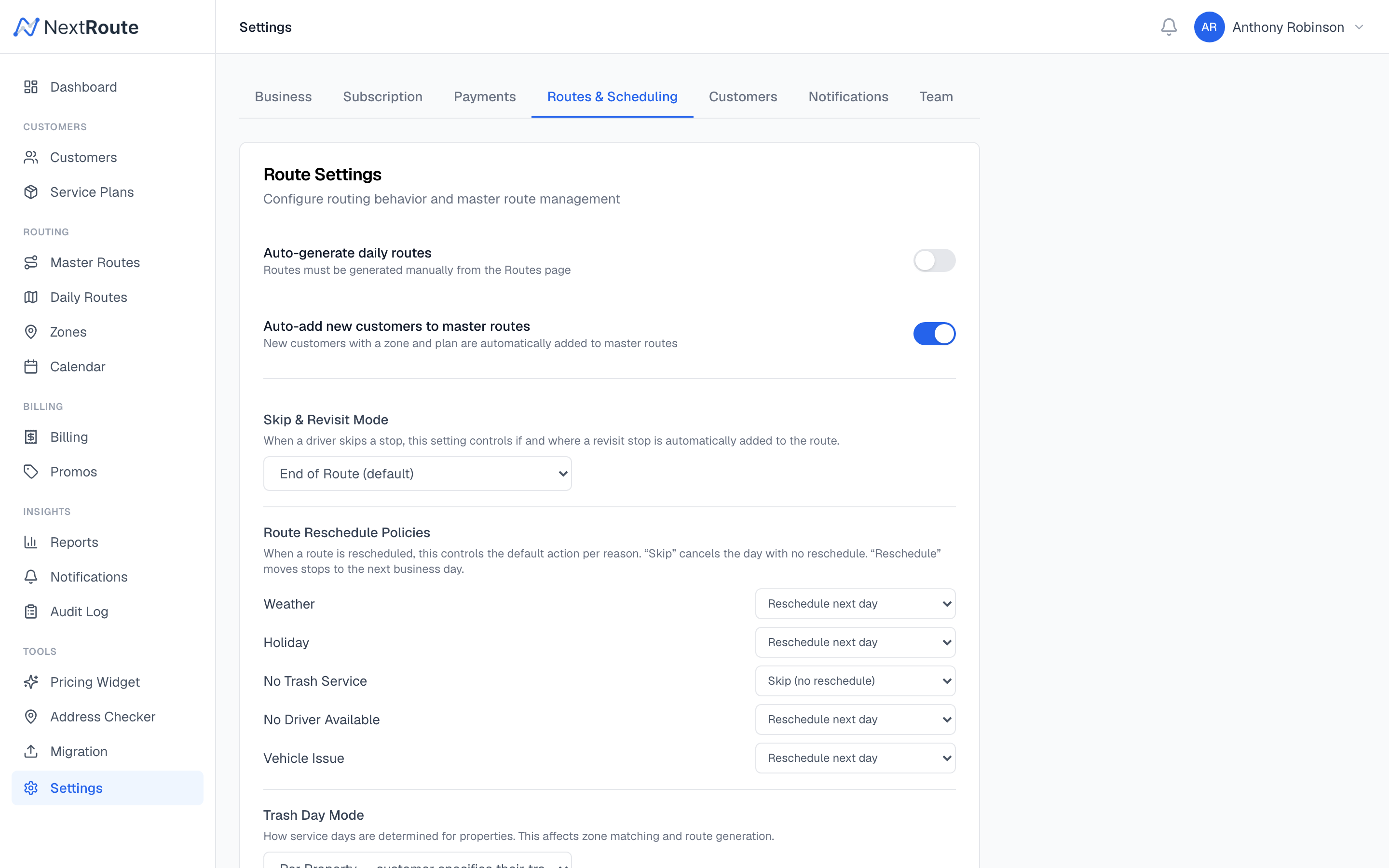
Auto-Generate Routes
| Setting | Description |
|---|---|
| Auto-generate routes | Toggle on/off. When enabled, a daily cron job generates draft routes for upcoming dates. |
Days ahead (auto_generate_days) | How many days in advance to generate routes. Default: 7. |
When auto-generation is on, routes are created as draft status, ready for review and dispatch.
Auto-Add Customers to Routes
| Setting | Description |
|---|---|
Auto-add to route (auto_add_to_route) | When enabled, new customers are automatically added to the appropriate master route template with approval_status = 'approved'. When disabled, new customers are added with pending status and require manual approval. |
Trash Day Mode
Controls how trash pickup day is determined for properties:
| Mode | Behavior |
|---|---|
per_property | Each property has its own trash_day field. Useful when different neighborhoods have different pickup days. |
uniform | All properties use the tenant-level default_trash_day. Useful when your entire service area has the same trash day. |
Trash day information helps schedule services relative to when trash is collected (e.g., clean bins after pickup).
Max Stops Per Route
| Setting | Description |
|---|---|
Max stops per route (max_stops_per_route) | Global cap on stops per generated route. When a template has more stops than this limit, the generation engine splits them across multiple routes. Set to null for no limit. |
Individual templates can also have their own max_stops setting which overrides the global value.
Skip & Revisit Mode
Controls how revisit stops are handled when a skip occurs:
| Mode | Description |
|---|---|
end_of_route | Revisit stops are appended to the end of the current route |
optimized | Revisit stops are inserted at the geographically optimal position |
none | No automatic revisits — skips are handled by reschedule or skip actions only |
See Skip & Reschedule for the full skip policy configuration.
Skip Policies
Configure what happens when a stop is skipped, organized by skip category and service frequency:
For each combination, choose an action:
revisit_today— add to today's routereschedule_next_week— add to next weekreschedule_next_available— add to next available dateskip— no follow-up
Example configuration:
| Category | Weekly | Biweekly | Monthly |
|---|---|---|---|
| No Access | Revisit today | Reschedule next | Reschedule next |
| Weather | Skip | Reschedule next | Reschedule next |
| Operational | Revisit today | Revisit today | Reschedule next |
| Customer Request | Skip | Skip | Skip |
Route Reschedule Policies
Configure the default action when an entire route is rescheduled:
| Reason | Default Action |
|---|---|
| Weather | reschedule_next_day |
| Holiday | skip |
| No Trash Service | reschedule_next_day |
| No Driver | reschedule_next_day |
| Vehicle Issue | reschedule_next_day |
Actions: reschedule_next_day, skip, or manual.
Related
- Route Generation — how auto-generation works
- Skip & Reschedule — detailed skip policy documentation
- Master Routes — template stop management