
Calendar
View your routes and blackout dates on a monthly calendar with day-detail sidebar.
Calendar
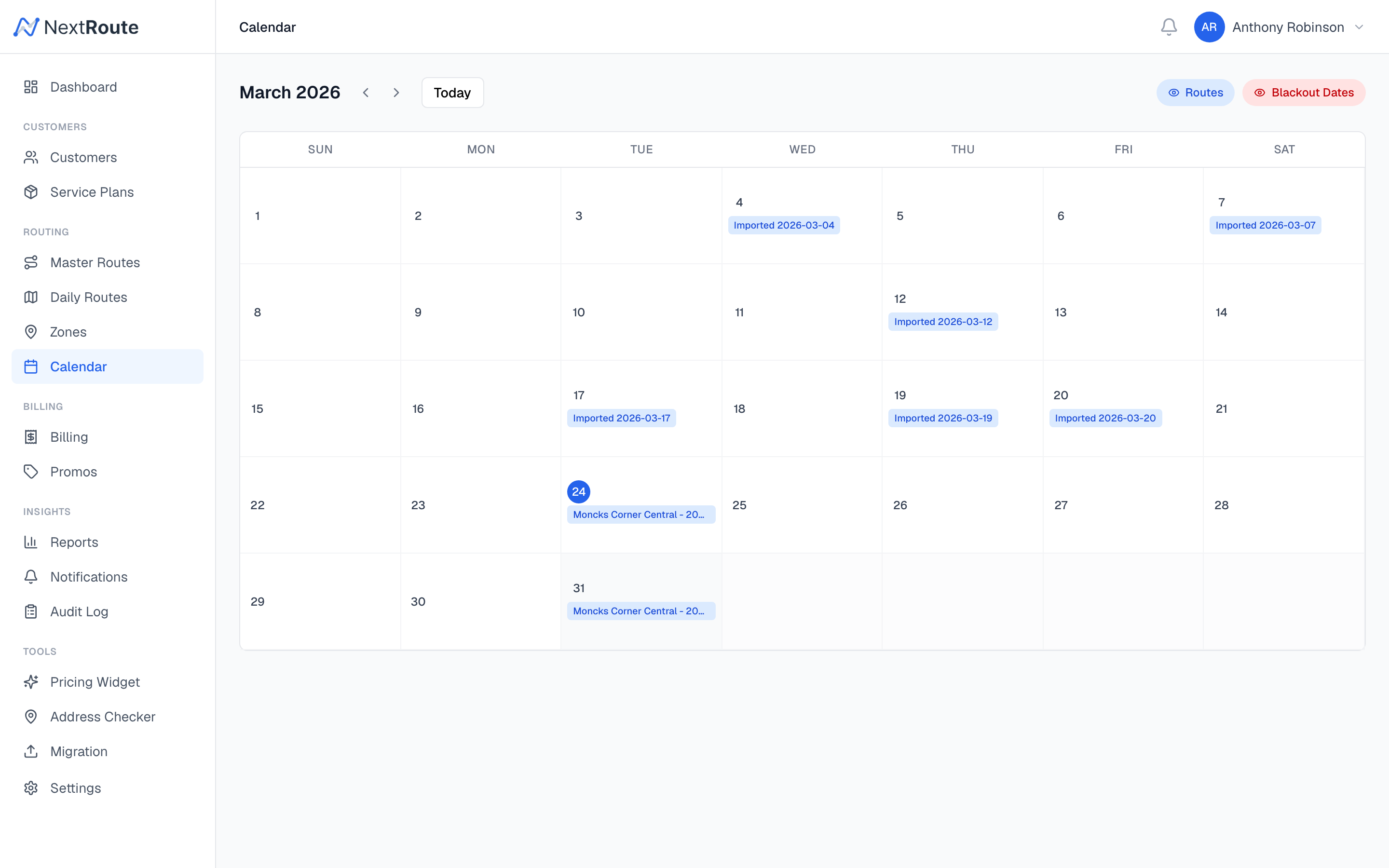
The Calendar view gives you a birds-eye view of your operation across an entire month. Routes appear as color-coded pills on each day, and blackout dates are clearly marked with a red indicator.
Navigating the Calendar
The calendar defaults to the current month. Use the navigation controls at the top to move between months:
- Left/Right arrows — move to the previous or next month
- Today button — jump back to the current month
The current day is highlighted with a blue circle for quick orientation.
What You See on Each Day
Each calendar cell shows:
- Route pills — blue badges showing route names. Up to 3 routes are displayed per cell; if there are more, a "+N more" label appears.
- Blackout date indicator — a red badge with the blackout reason (e.g., "Holiday", "Weather"). Blackout dates suppress route generation.
Toggle Filters
Two toggle buttons in the top-right corner let you show or hide layers:
| Toggle | Active color | Description |
|---|---|---|
| Routes | Blue | Show/hide route pills on calendar cells |
| Blackout Dates | Red | Show/hide blackout date indicators |
This is useful when the calendar is dense and you want to focus on one type of information.
Day Detail Sidebar
Click any day on the calendar to open the day detail sidebar on the right side of the page. The sidebar displays:
Blackout Warning
If the selected day is a blackout date, a red alert box appears at the top of the sidebar showing the blackout reason.
Route List
All routes scheduled for the selected day are listed with:
- Route name — the name inherited from the master route or manually set
- Status badge — shows the current status with color coding:
| Status | Color | Meaning |
|---|---|---|
draft | Gray | Route generated, not yet dispatched |
optimized | Blue | Stop order has been optimized |
dispatched | Indigo | Sent to driver's mobile app |
in_progress | Yellow | Driver has started completing stops |
completed | Green | All stops finished |
- Stop count — number of stops on the route
- Driver name — the assigned driver, if any
If no routes exist for the selected day, a "No routes for this day" message is shown.
How Routes Appear on the Calendar
Routes are fetched for the visible month using a date range query (date_from and date_to). The calendar groups routes by their date field and renders them in the appropriate cell.
Blackout Dates on the Calendar
Blackout dates are fetched once and indexed by date. They appear on the calendar regardless of the month filter since they are loaded globally.
To manage blackout dates (add, edit, or remove), go to Settings > Routes & Scheduling or see the Blackout Dates documentation.
Practical Tips
Planning Ahead
Use the calendar to plan your week:
- Navigate to the upcoming week
- Check which days have routes and which are clear
- Look for blackout dates that might affect scheduling
- Click each day to review the route details and assigned drivers
Verifying Route Generation
After running route generation, open the calendar to confirm routes appear on the expected days. If a day is blank when you expected routes:
- Check if the day is a blackout date
- Verify the route template's day of week matches
- Check if the service frequency (weekly, biweekly, monthly) applies to that week
- Ensure the template has approved stops
Spotting Gaps
Scroll through the month to identify:
- Days without routes that should have them
- Routes still in
draftstatus that need to be dispatched - Uneven distribution of routes across the week
Data Sources
The calendar pulls data from two API endpoints:
| Data | Endpoint | Description |
|---|---|---|
| Routes | GET /api/routes?date_from=...&date_to=... | Routes within the visible month |
| Blackout dates | GET /api/blackout-dates | All configured blackout dates |
Related Pages
- Route Generation — how routes are created from master routes
- Blackout Dates — configuring company-wide non-service days
- Dispatching — sending routes to drivers
- Daily Routes — understanding route statuses and lifecycle