
Notification Settings
Configure notification templates, email and SMS channels, service reminders, and completion notifications.
Notification Settings
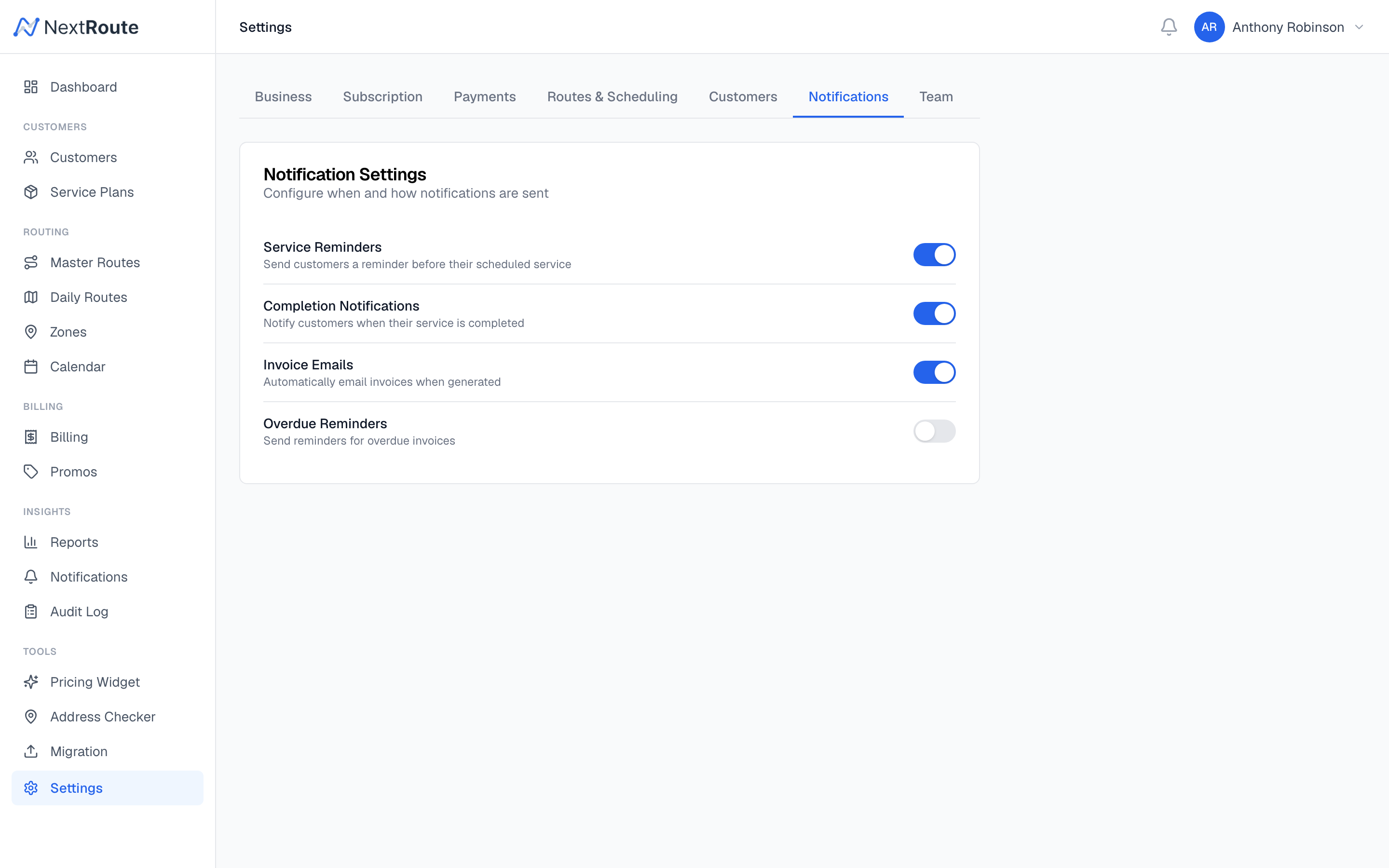
NextRoute sends automated notifications to customers via email and SMS. The Notifications settings page lets you configure templates, triggers, and channels.
Notification Channels
| Channel | Description |
|---|---|
| Sent via transactional email service. Supports HTML formatting, branding, and links. | |
| SMS | Text messages sent to customer phone numbers. Plain text, concise. |
Each notification template specifies which channel it uses. You can have both an email and SMS template for the same trigger.
Notification Triggers
Triggers determine when a notification is sent:
| Trigger | Description |
|---|---|
| Service Reminder | Sent before the scheduled service date (e.g., "Your bin cleaning is tomorrow") |
| Service Completed | Sent after a stop is marked completed (e.g., "Your bins have been cleaned!") |
| Route Dispatched | Sent when a route is dispatched (e.g., "Your service is on the way") |
| Invoice Sent | Sent when an invoice is emailed to the customer |
| Payment Received | Sent after a payment is recorded |
| Welcome | Sent when a new customer is created |
| Service Skipped | Sent when a stop is skipped (with reason) |
Notification Templates
Each template contains:
| Field | Description |
|---|---|
trigger | Which event fires this notification |
channel | email or sms |
subject | Email subject line (email only) |
body_template | The message body with variable placeholders |
is_active | Whether this template is active |
Template Variables
Use double-brace placeholders in your templates:
| Variable | Value |
|---|---|
{{customer_name}} | Customer's full name |
{{customer_first_name}} | Customer's first name |
{{service_date}} | The scheduled service date |
{{service_plan}} | Name of the service plan |
{{address}} | Property address |
{{route_name}} | Route name |
{{invoice_number}} | Invoice number |
{{invoice_total}} | Invoice total formatted as currency |
{{payment_link}} | Link to pay the invoice online |
{{business_name}} | Your business name |
Example Templates
Service Reminder (SMS):
Hi {{customer_first_name}}! Your {{service_plan}} at {{address}} is scheduled for {{service_date}}. Please have bins at the curb by 7am. - {{business_name}}Service Completed (Email):
Subject: Your service is complete!

Hi {{customer_first_name}},

Great news — your {{service_plan}} at {{address}} has been completed today.

Thank you for choosing {{business_name}}!
Invoice Sent (Email):
Subject: Invoice {{invoice_number}} from {{business_name}}

Hi {{customer_name}},

Your invoice {{invoice_number}} for {{invoice_total}} is ready.

View and pay online: {{payment_link}}

Thank you!
{{business_name}}
Managing Templates
From the Dashboard
- Go to Settings > Notifications
- Click on a trigger to view its templates
- Edit the template body, subject, and channel
- Toggle
is_activeto enable/disable - Save
Default Templates
NextRoute provides default templates for each trigger. These are pre-configured when your account is created based on your business vertical. You can customize them at any time.
Communication Log
All sent notifications are logged in the communication_log table:
| Field | Description |
|---|---|
channel | email or sms |
trigger | Which event fired the notification |
recipient | Email address or phone number |
status | sent, delivered, failed, bounced |
sent_at | When the notification was sent |
delivered_at | When delivery was confirmed |
error_message | Error details if delivery failed |
View the communication log from the customer detail page to see all notifications sent to a specific customer.
Related
- General Settings — business name and logo used in templates
- Customer Portal — customer-facing communication
- Auto-Billing — invoice-related notifications